
Usage
VoxelAI Studio has been made to act like a regular 3D engine object browser. That way, if you are already experienced with handling 3D objects from engines such as Unreal Engine, Godot Engine, or even Blender and Autodesk Maya will be at ease here.
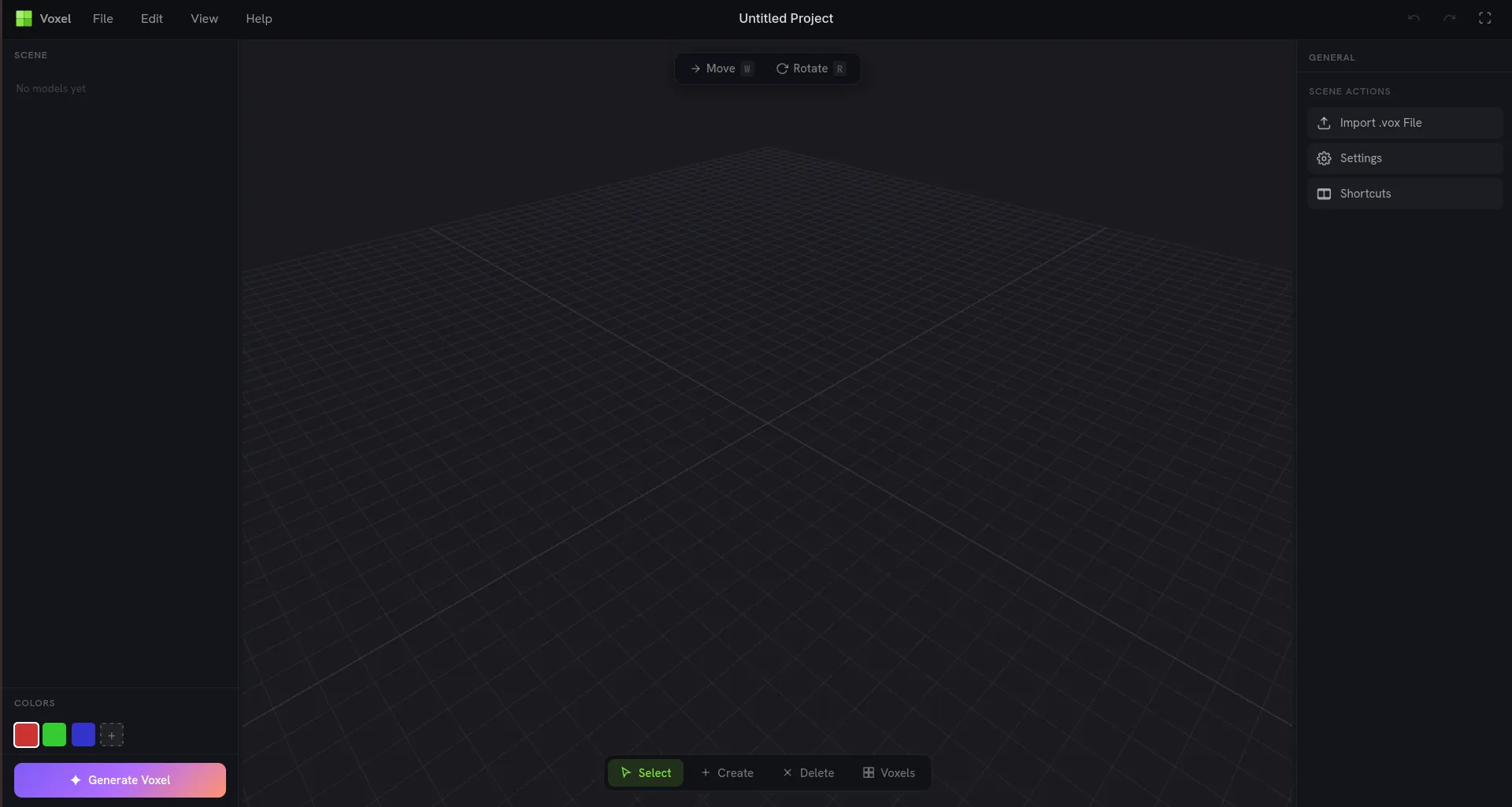
The Main UI of VoxelAI Studio Editor.
For newcomers and people that want to learn how to use these ecosystems, you can launch the interactive demo at Help->Interactive Tutorial.
Editor Components
Section titled “Editor Components”The editor consists of multiple tabs, and is ready for any complex work. The work environment consists of two panels left and right, managing the scene tree and the settings of the current selection. If no selection is made, the main settings of the project will appear in the right tab, as the General Section.
General Section
Section titled “General Section”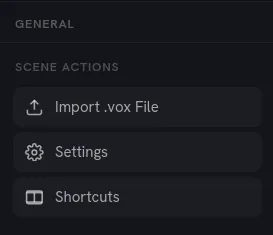
The General section consists of the main project settings. In here, you can add a new model, change the main project settings, and see the current shortcuts of the software.
Project Settings
Section titled “Project Settings”The Project Settings are setup for most users. But if you want to edit some settings, they are present and there is lots of customization. To request anything, join the community and ask in the #feature_request channel!
Viewport Settings
Section titled “Viewport Settings”| Setting Name | Value(s) | Description |
|---|---|---|
| GridXZ (Horizontal) | bool | Default Floor Grid. The Y Axis is pointing up. |
| GridXY (Front) | bool | Grid for building upwards or for 2D Voxels |
| GridYZ (Side) | bool | Last Grid for YZ orientation (profile view) |
| Cursor Preview | bool | Shows where youre placing the block interactively.Can be turned off, enabled by default. |
| Background | Color | The background color of the workarea, default is #1A1A1F. |
| Grid Size | int | The absolute size of the grid. |
| Grid Divisions | int | How many subdivisions the grid is split into. |
Camera Settings
Section titled “Camera Settings”| Setting Name | Value(s) | Description |
|---|---|---|
| Field of View | number | The camera’s field of view (FOV). |
| Orbit Speed | number | How fast the camera rotates around the scene when orbiting. |
| Zoom Speed | number | How fast the camera zooms in and out. |
| Pan Speed | number | How fast the camera pans across the scene. |
Lighting Settings
Section titled “Lighting Settings”| Setting Name | Value(s) | Description |
|---|---|---|
| Ambient Light | number | Intensity of the uniform ambient light that fills the scene. |
| Directional Light | number | Intensity of the directional (sun-like) light. |
Properties Panel
Section titled “Properties Panel”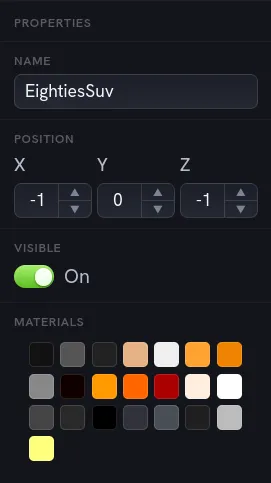
The properties tab allows the user to see and edit multiple things about the current model. you can toggle all settings that applies to each model in your scene:
| Property | Value(s) | Description |
|---|---|---|
| Name | string | The name of the model displayed in the scene. changing this name will change the export name of the model |
| Position | Vector3(x,y,z) | The position of the model in the Scene |
| Rotation | Vector3(x,y,z) | The rotation of the model in the Scene |
| Visible | bool | Enables visibility of the Model in the Scene. |
| Materials | Color List | All the colors used in the model. you can right-click to copy the hex code or select all blocks with the selected color, see Colors |